I’ve been using C# for over 20 years now, primarily for making games. I am using Visual Studio Community and Monogame (formerly XNA) these days, which allows deployment on most desktop systems today. Here are the instructions to get set up ready to start programming a 2D video game.
INSTALLING VISUAL STUDIO COMMUNITY
CLick this link https://visualstudio.microsoft.com/downloads/ to download Visual Studio Community for PC. Once the download is complete, double click it to start the installation process. You should end up at the following screen.

Make sure you have “.NET desktop development” selected. Unless you need anything else, just click “Install”. Once that’s done, click the launch button and you should see something like this…

If you click “Create a new project”, you should be able to select the type of project you want from the list. But the Monogame project options won’t be there right now. We need to fix that, so just click “Continue without code” for now.
Once Visual Studio is loaded, click the “Extensions” menu and then “Manage Extensions”. This should open the Extension Manager window. You should see a search bar in the top left corner of the window. Use it to search for “Monogame”, and then select “MonoGame Framework C# project templates” and click “Install”, then close Visual Studio.
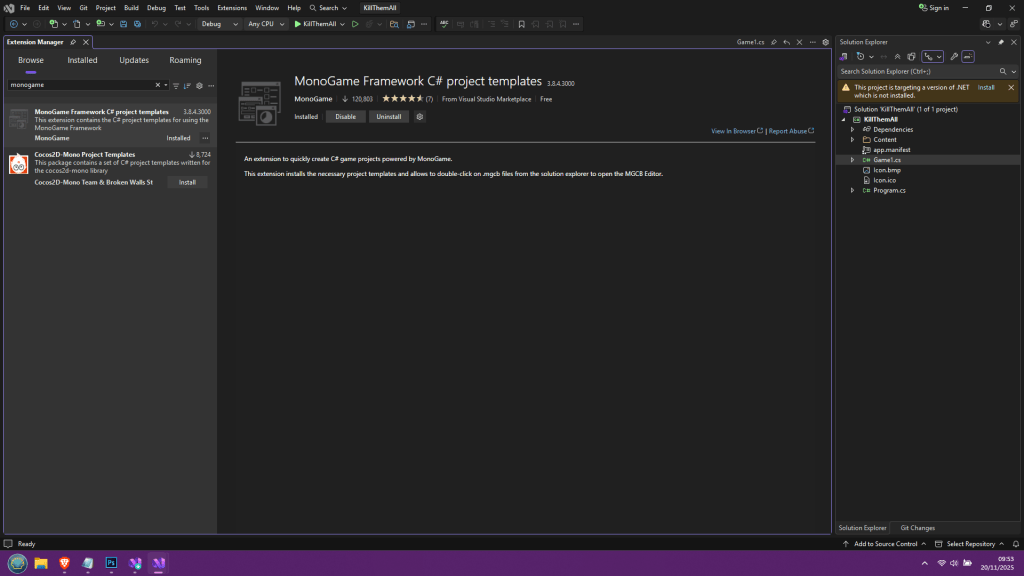
Next time you open Visual Studio and get back to the start screen, choose “Create a new project” and this time the list of project types will appear but now it will also contain the Monogame templates. Browse the list until you find “MonoGame Cross-Platform Desktop Application”. Click that, and then click “Next”.
You should now see this window here…

Always make sure you click “Place solution and project in the same directory”. You will thank me one day, I promise. Give the project the same name as the game if you want to keep things simple (I called my example “KillThemAll” but you can of course choose whatever you want). When you are done, click “Create”.
When ready, your screen should now look something like this…
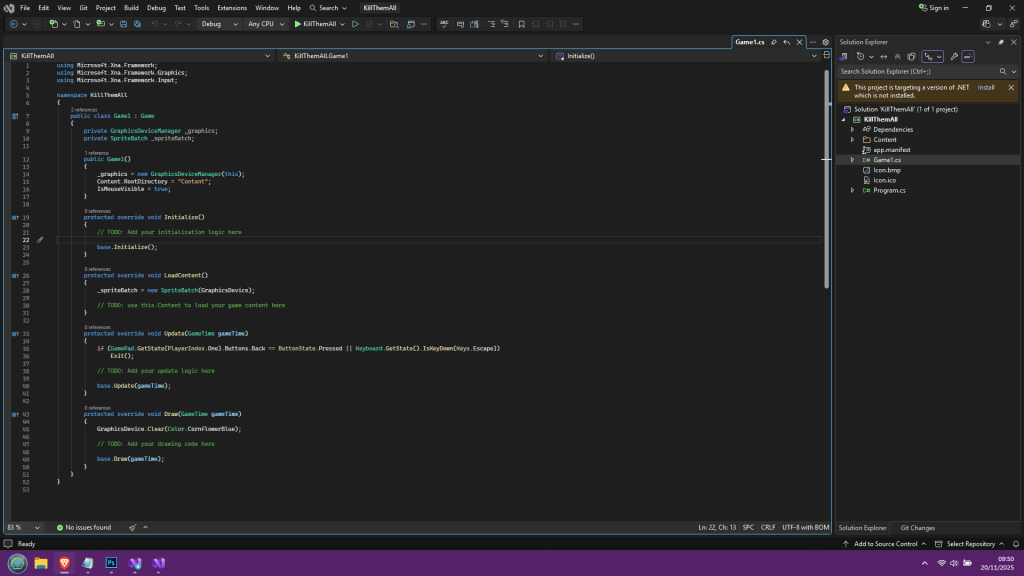
What you are looking at is the start point for any game project. If you like we can just hit the run button (the green arrow) at the top of the screen on the toolbar, and it will run the project. All you will see is a blue window and all you will be able to do is press escape to close the program.
Alright, that’s where you are going to be starting any new game from. It sure would be nice if we had a nice easy tutorial to make a cool game with, though, right?
Well, this kind of thing is very large in scope, so if I am to do any kind of tutorial I would want it on its own site so it has its own breathing space. Use this link to visit; https://jaypescifaab040331-qwpor.wordpress.com/
 Jay's Arcade
Leave a comment